
Check tags before issuing a view.
ANNOTATION

Tag Check
WHAT THE TOOL DOES
Find missing, duplicate, orphaned or unreadable tags, including material tags, in the active view. Review affected elements and apply supported repairs; tags that cannot be repaired safely are left untouched and reported.
A CONCRETE USE CASE
A need. A clear workflow.
Locate reported issues and apply supported repairs.
KEY FEATURES
Targeted checks
Choose a category and tag type, then run the check in the active view. Element categories and material tags are supported.
Readable findings
Use Missing, Varies, ?, Orphaned, Duplicates, Outside Crop and Deleted Target modes. Results show elements and their IDs; room results can display readable room names.
Rules and navigation
Build parameter rules with AND / OR, filter results, then select, zoom to or isolate the elements you want to inspect.
Repairs and placement
Create missing tags using the selected type, orientation, offsets and leader settings. Fix Selected handles supported repairs; cases that cannot be repaired are reported.
IN PRACTICE
From setup to review.
Define the check
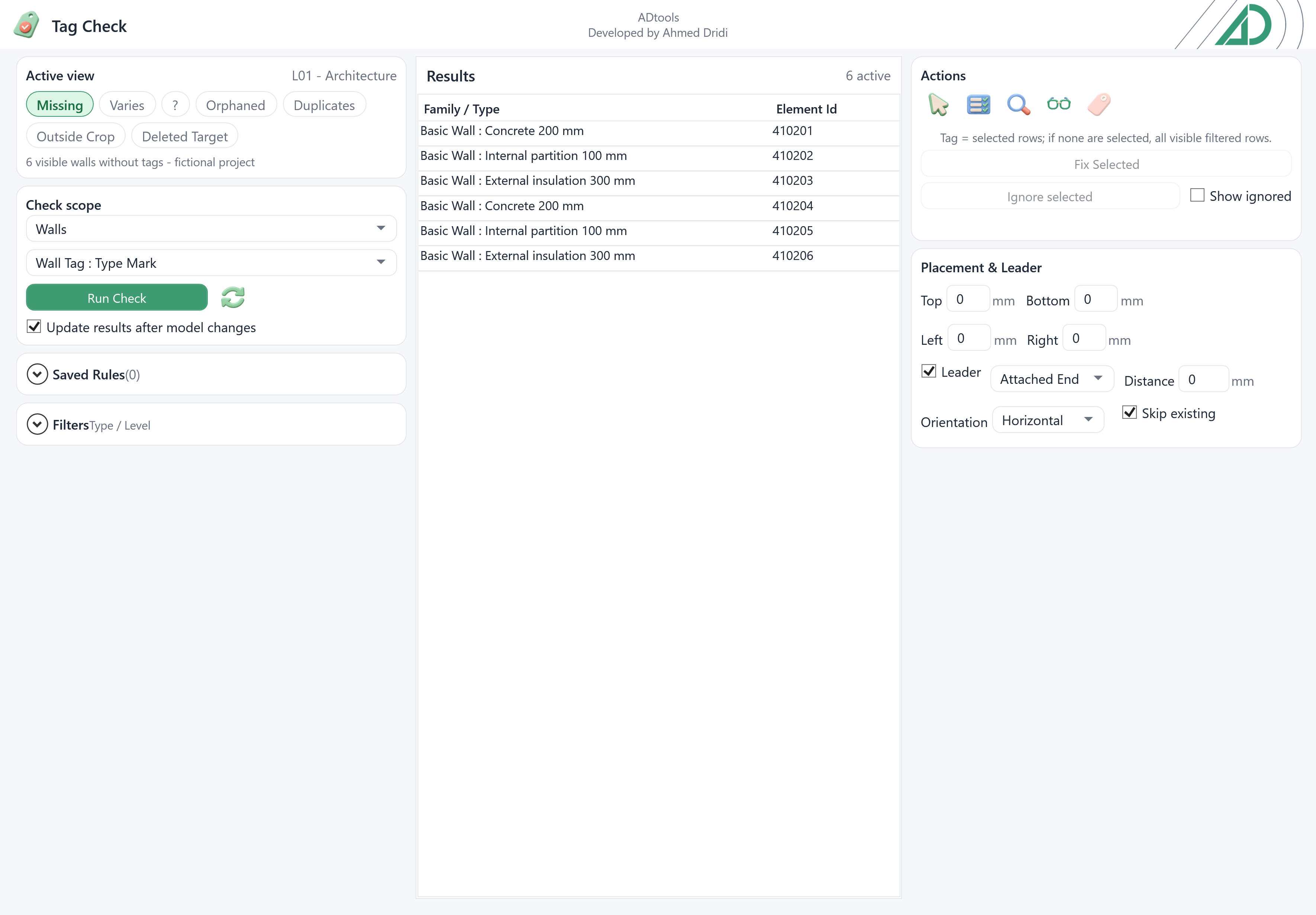
In L01 - Architecture, choose Walls and Wall Tag : Type Mark, then run Missing.
Review results
The six example walls appear with their types and IDs. Select a result to locate its element in the model.
Repair and recheck
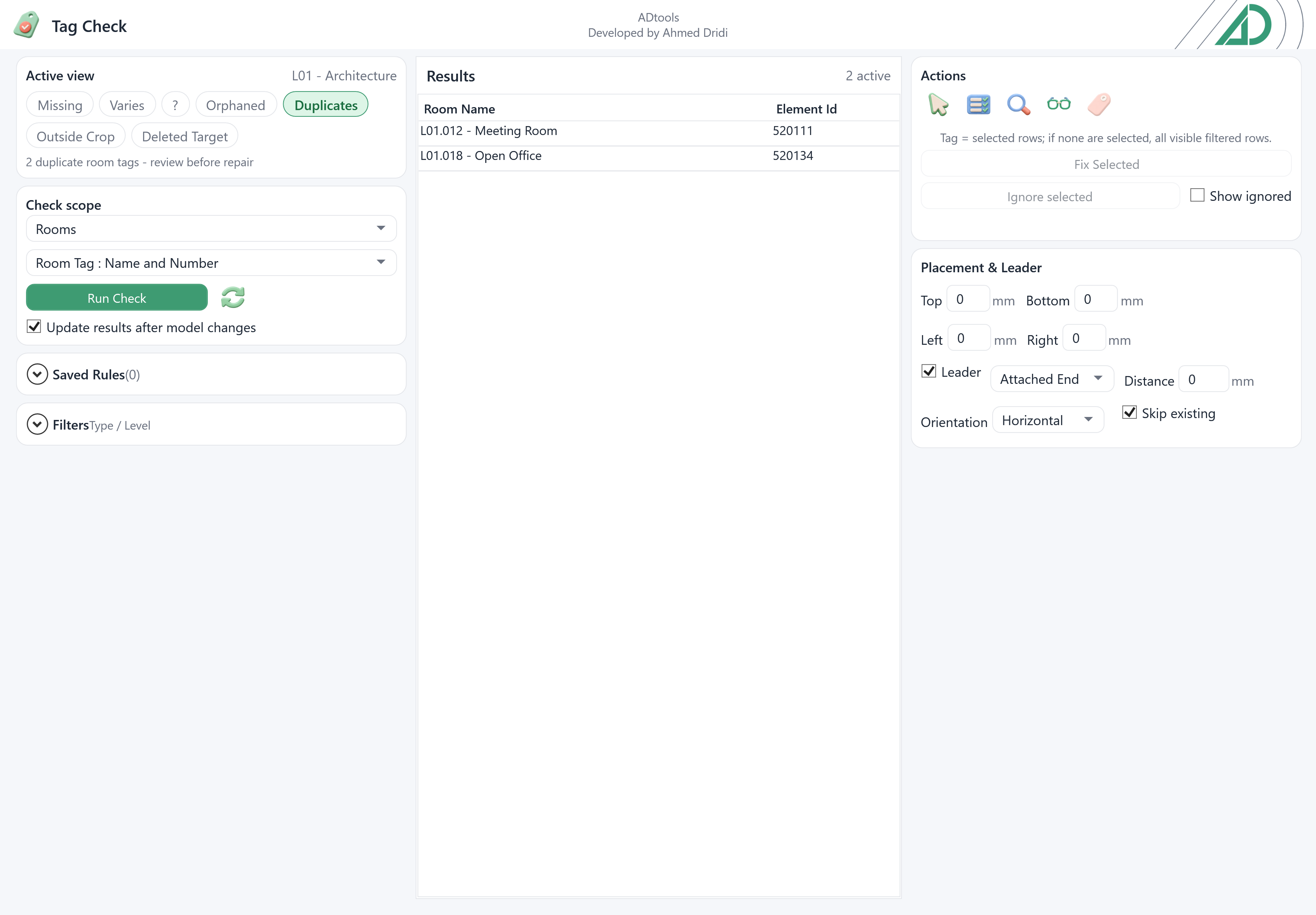
Choose tag placement settings, run the appropriate action and repeat the check. Review duplicate room-tag results before repairing them.
Riverside Office · fictional example
Six untagged walls and two rooms with duplicate tags illustrate two separate checks. The previews show wall types, element IDs and room names.
The interface, in detail.
High-resolution views rendered from the source interface with fictional English project data. These previews were prepared outside Revit.
ADTOOLS IN YOUR OFFICE
Request a demo See ADtools on your projects.
A video demo built around your own cases. Get in touch to set up a call.