Keep your bearings when several models contain views with the same names.
Graphics
ADbrow
Revit 2024+WHAT THE TOOL DOES
Make the Project Browser easier to read and identify open projects by their view-tab colours. Preview, apply and restore local appearance settings.
A PRACTICAL EXAMPLE
Useful data. Clear visual cues.
Combine browser appearance rules with one tab colour per project and a stronger active-view marker.
KEY FEATURES
A readable Project Browser
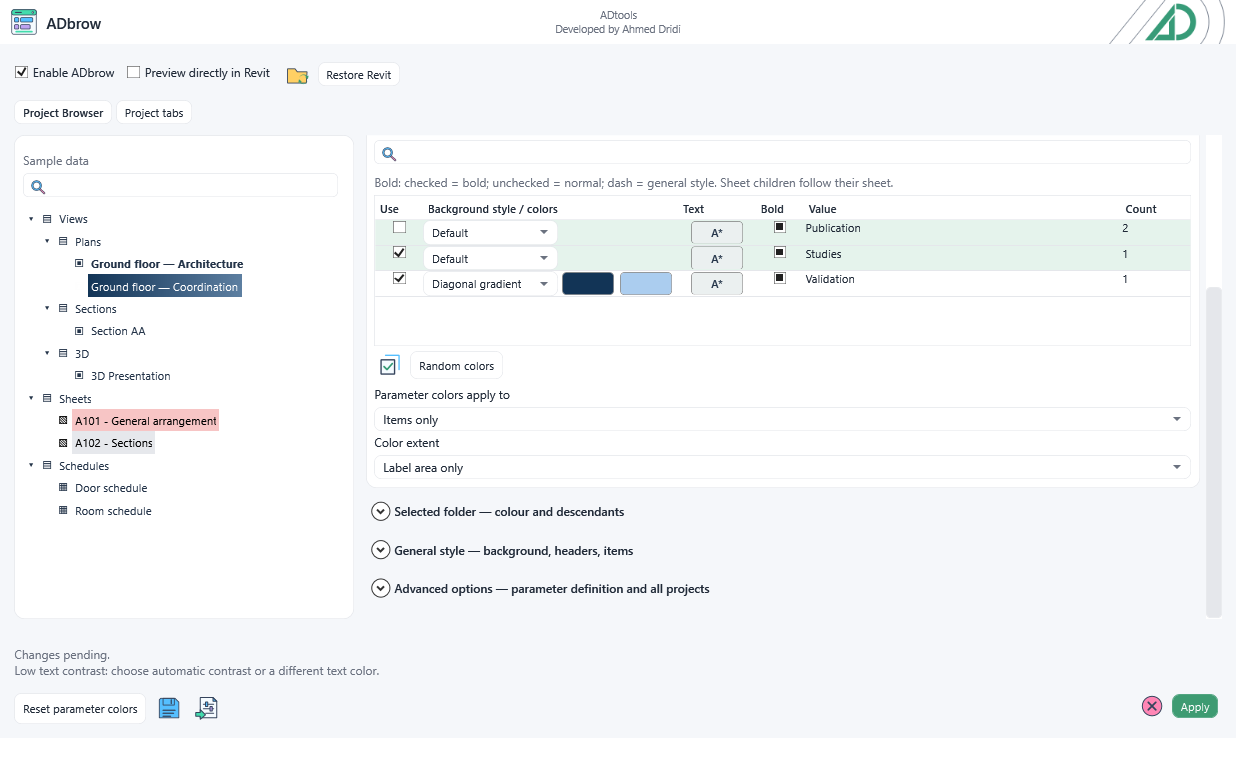
Customize the panel, folders and item appearance with backgrounds, text colours and font weight. Instance-parameter rules can distinguish views, sheets and schedules.
One colour per project
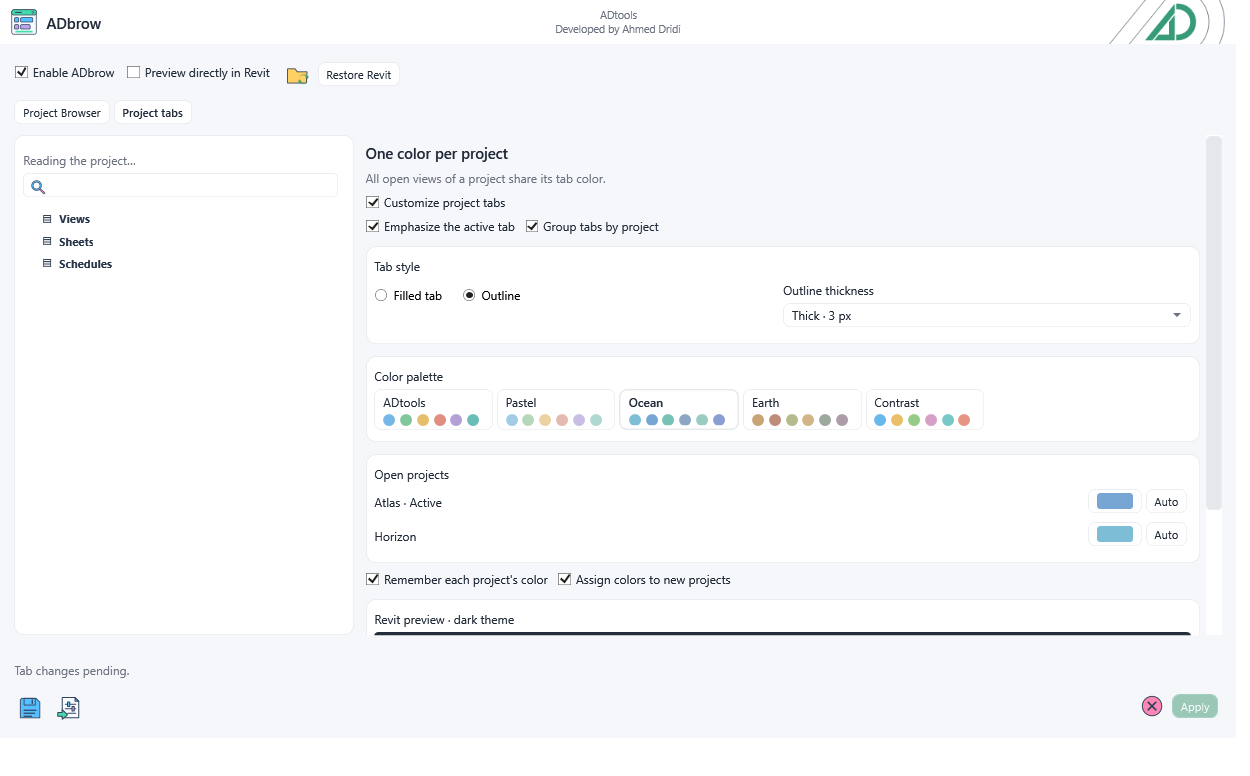
All view tabs of a project share its colour, including when different projects contain identically named views. Choose filled tabs or full outlines with three thicknesses.
Palettes and custom colours
Choose ADtools, Pastel, Ocean, Earth or Contrast. Custom project colours take priority; Auto restores a palette colour. Saved-project assignments can be remembered locally.
Emphasize the active view
Strengthen the active tab and soften inactive tabs. Group project tabs within their existing pane; floating windows, tiled views and family tabs retain their placement.
Preview before applying
Use the temporary native Revit preview to inspect pending styles. Cancel restores the applied configuration; applied tab colours remain active after closing the settings window.
Separate, reversible settings
Browser and project-tab configurations are managed separately. Restore Revit on the tab page removes tab colouring without resetting the browser. Model elements and parameter values are not modified.
IN PRACTICE
Open ADbrow
Go to ADtools → Graphics → ADbrow and choose Browser or Project tabs.
Set your visual cues
Choose rules, project colours, filled tabs or outlines, active-tab emphasis and optional grouping.
Preview and apply
Inspect the preview, then Apply. Save a configuration or restore native appearance from the corresponding page.
Inside the tool
Examples from the current interface and validation on demonstration projects.

ADTOOLS IN YOUR OFFICE
Request a demo See ADtools on your projects.
A video demo built around your own cases. Get in touch to set up a call.