Formats
Batch export to PDF, DWG, DWF, IFC and image formats, depending on the selected views or sheets.

ExportPRO brings sheet and view preparation, file naming and output options into one interface. It makes repeated exports more reliable while maintaining consistent naming.
Batch export to PDF, DWG, DWF, IFC and image formats, depending on the selected views or sheets.
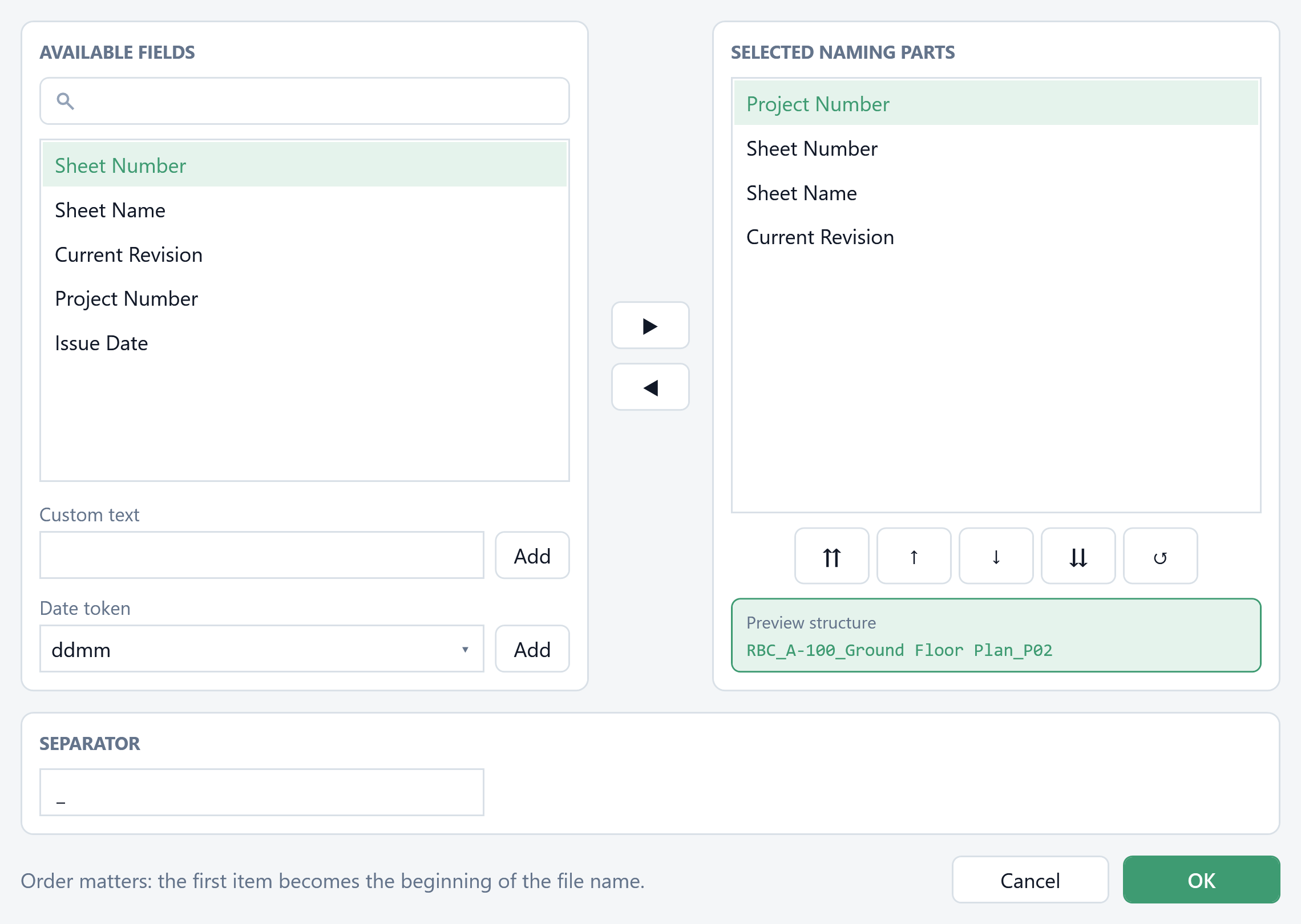
Build names from project, sheet and revision parameters, with reusable profiles and XML configuration import and export.
Select, filter and manually reorder items before starting, with processing status during export.
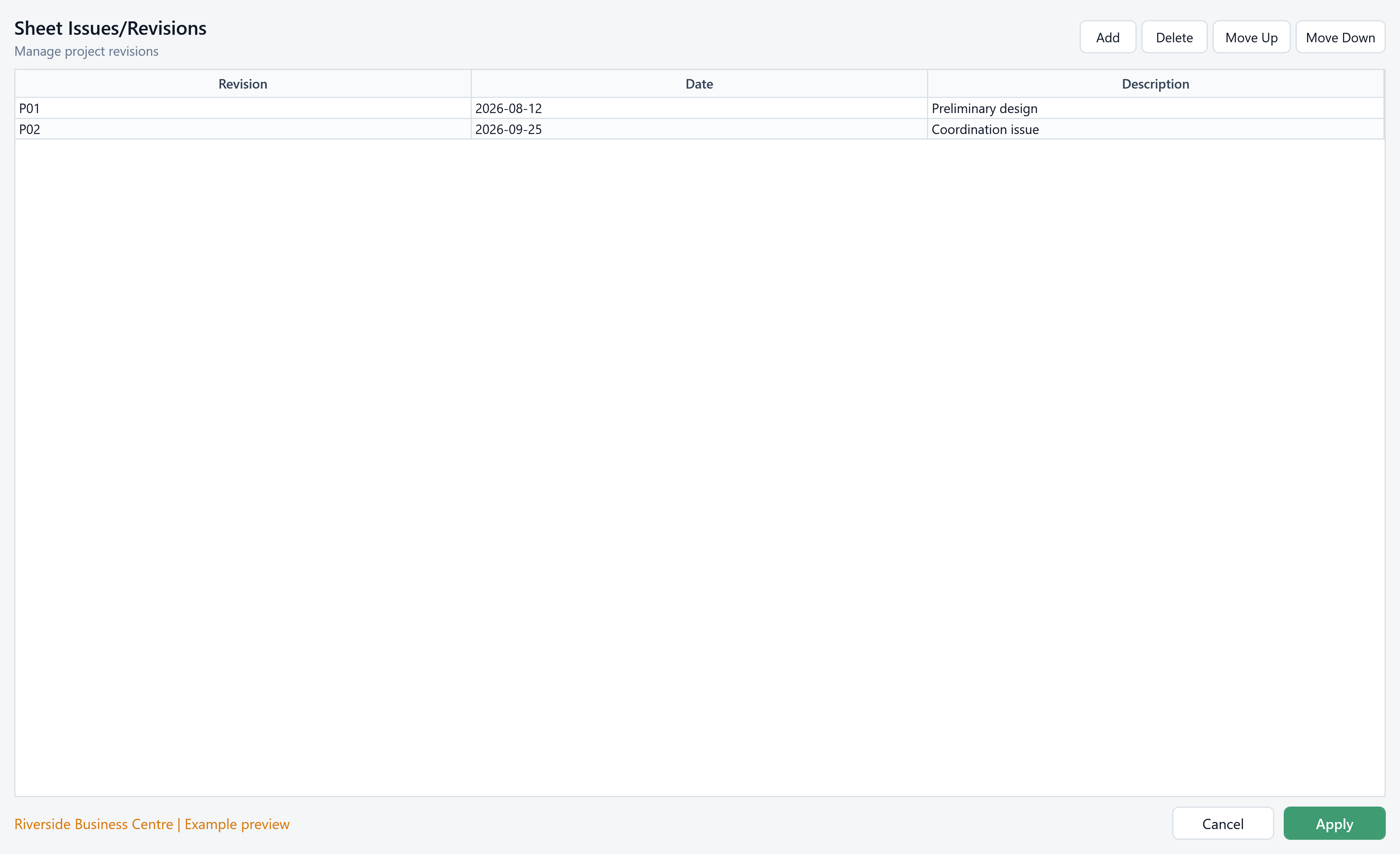
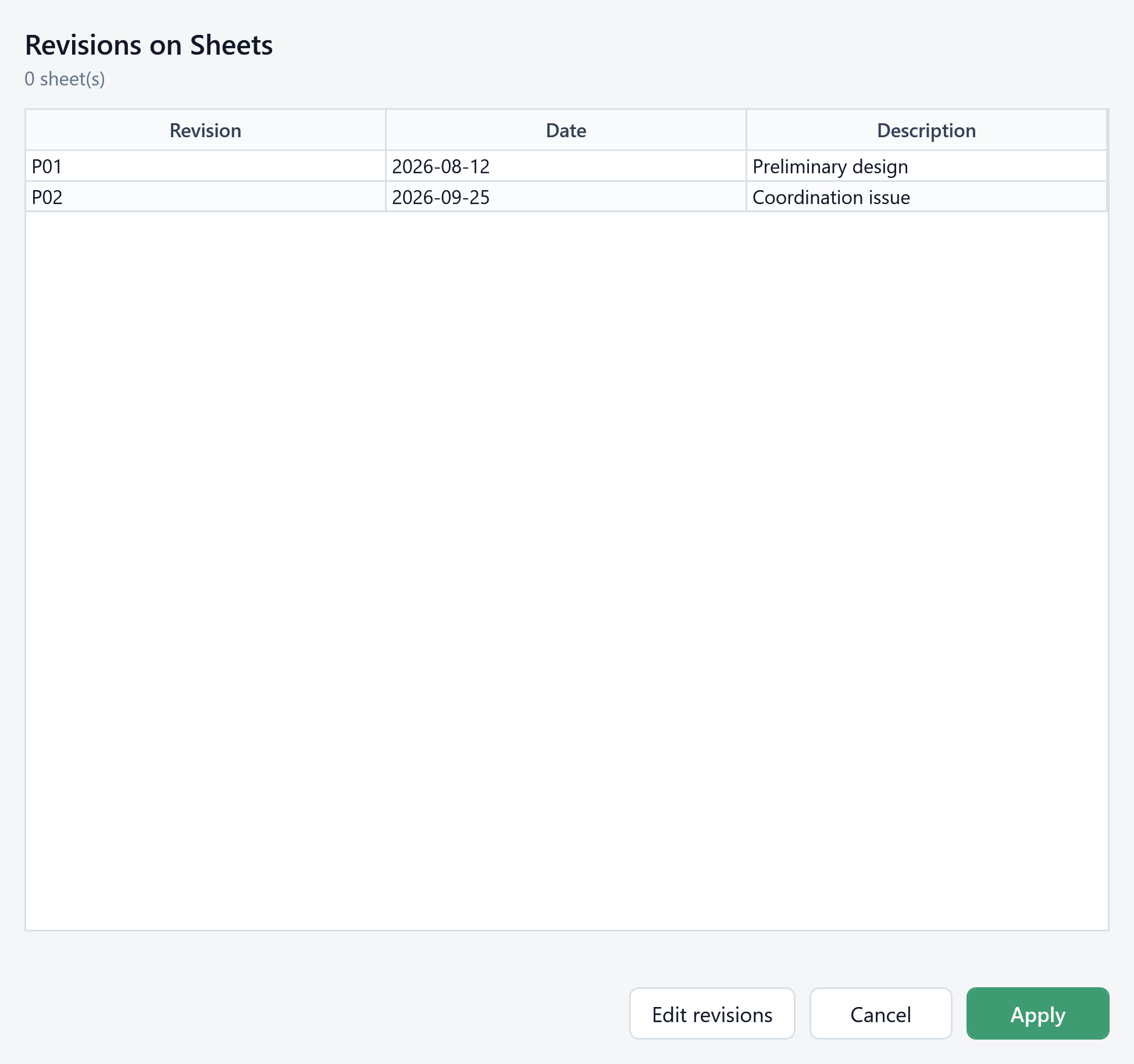
Manage sheet revisions, retain export settings and output folders, and log operations.
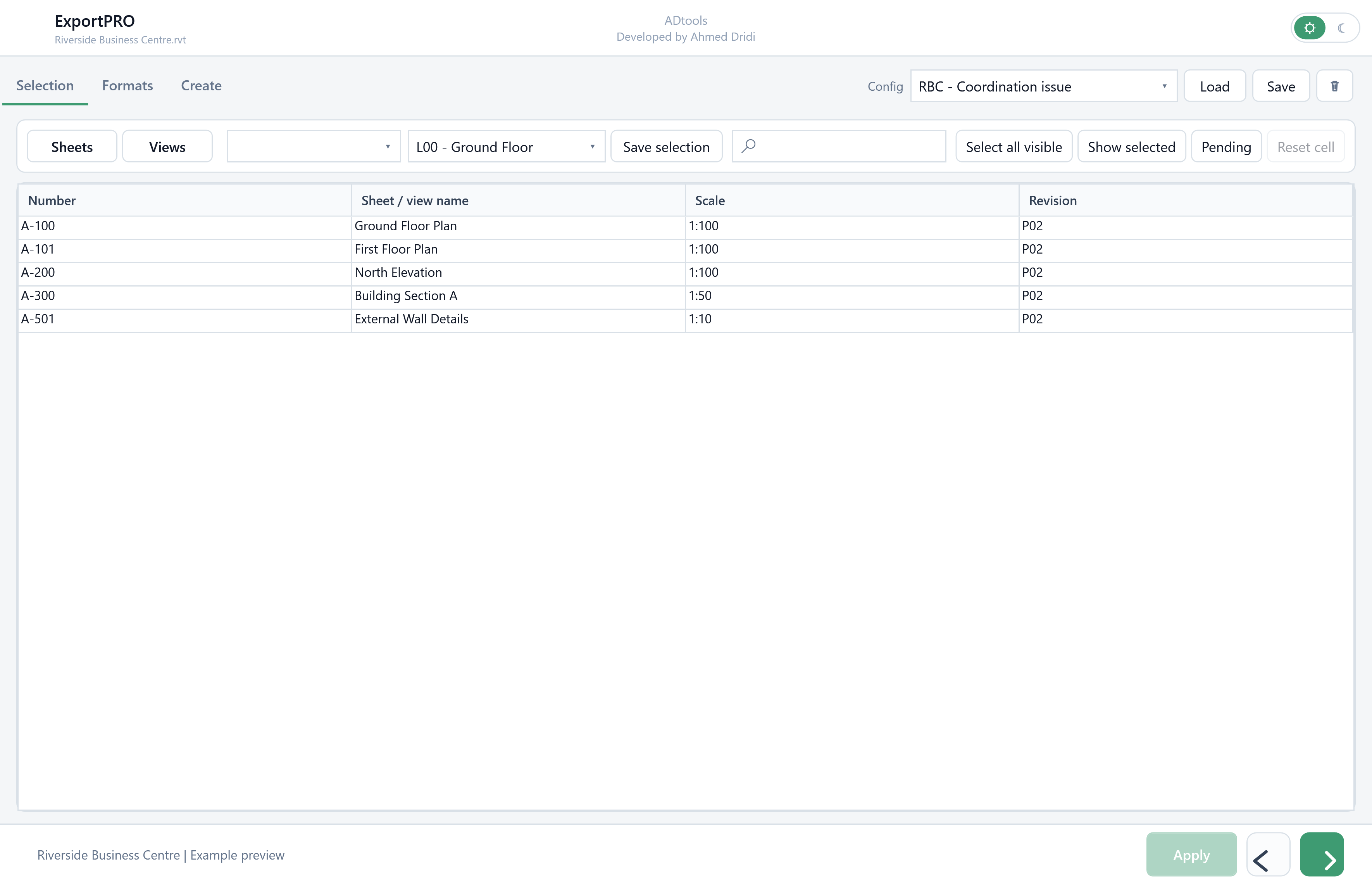
Choose sheets or views to export. The table shows number, revision, name, type, scale and format; selections can be saved for future deliveries.
Enable the formats and settings offered by the interface. The name builder assembles relevant fields; configurations and revision settings help prepare a consistent batch.
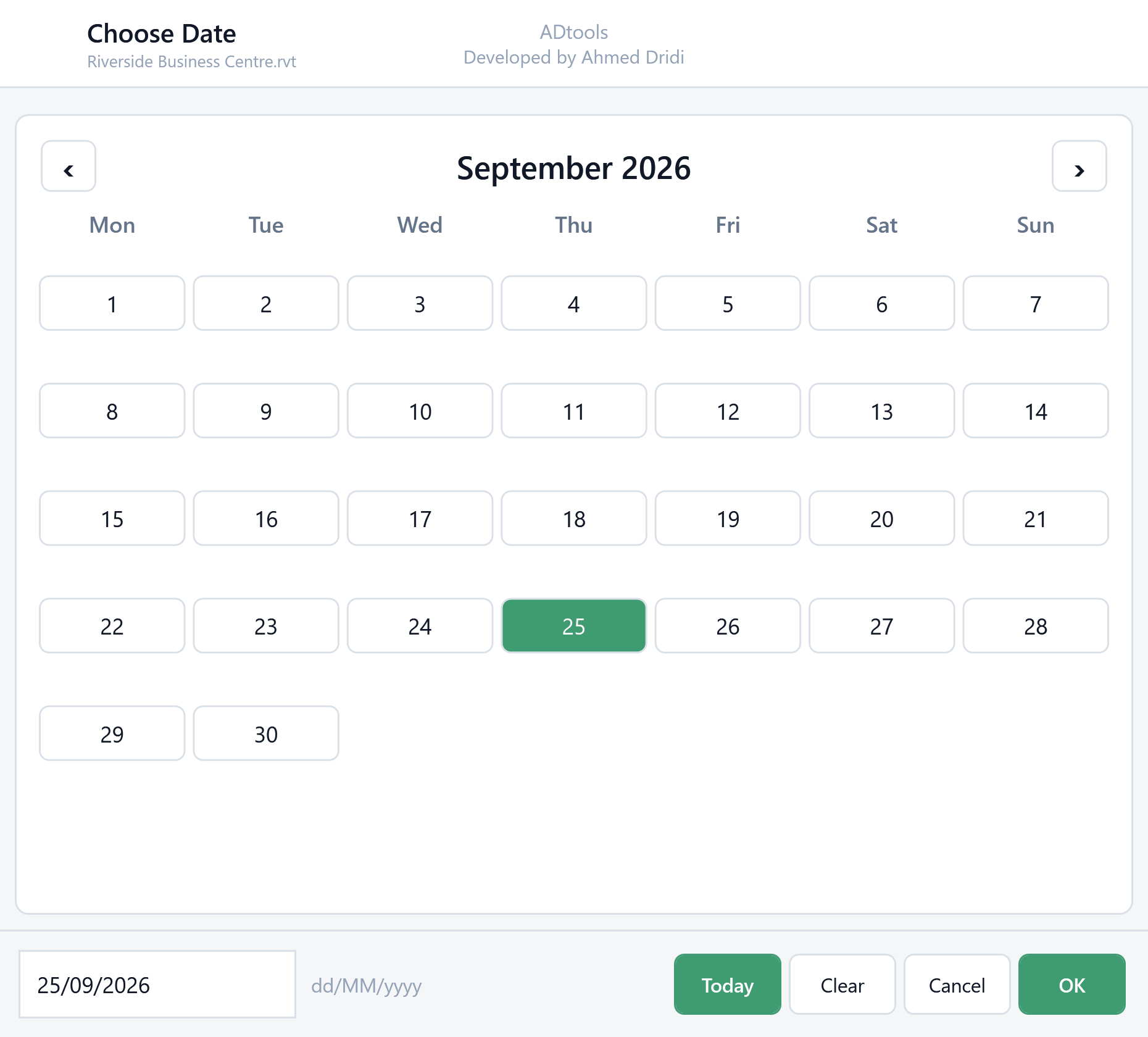
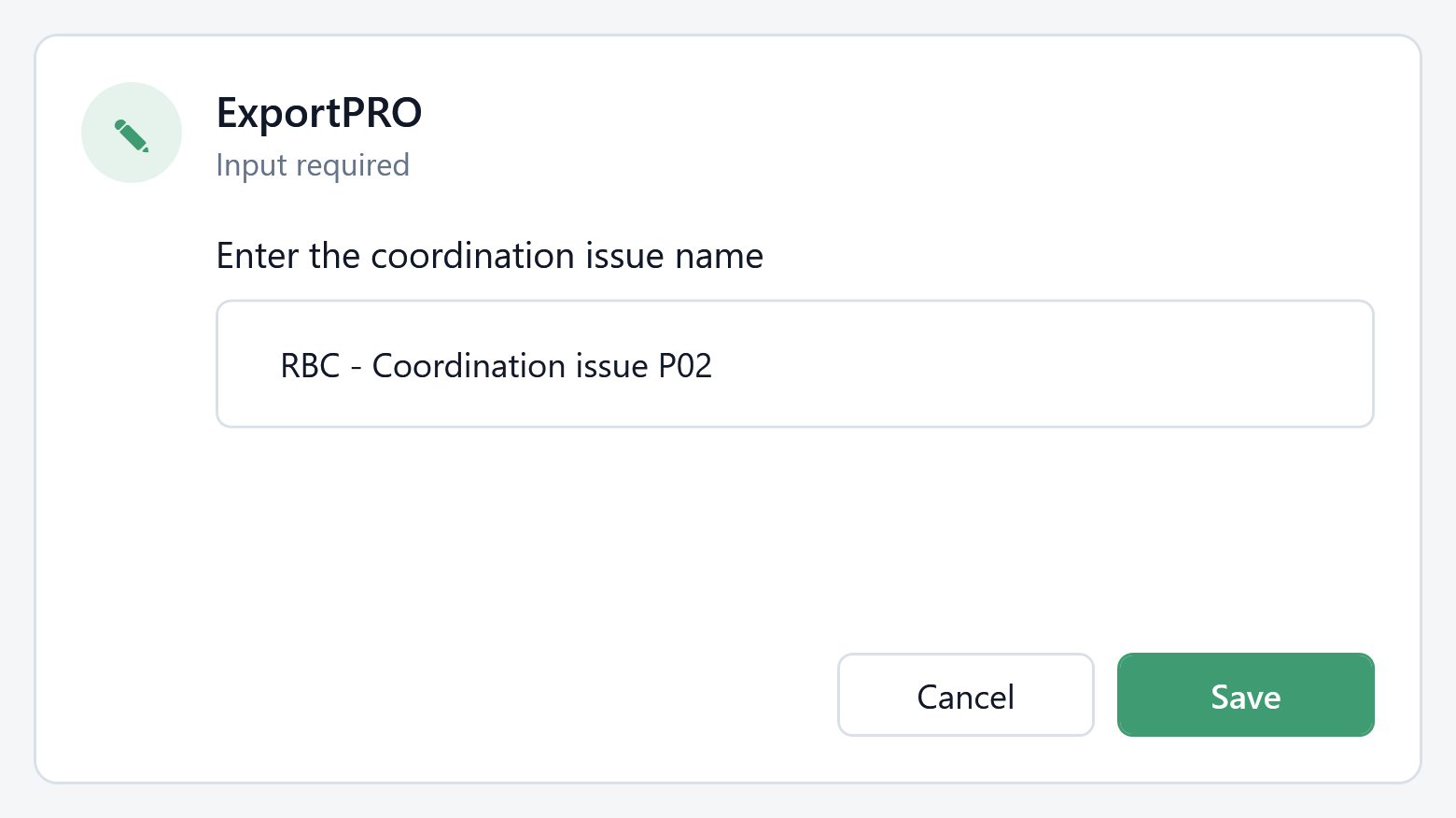
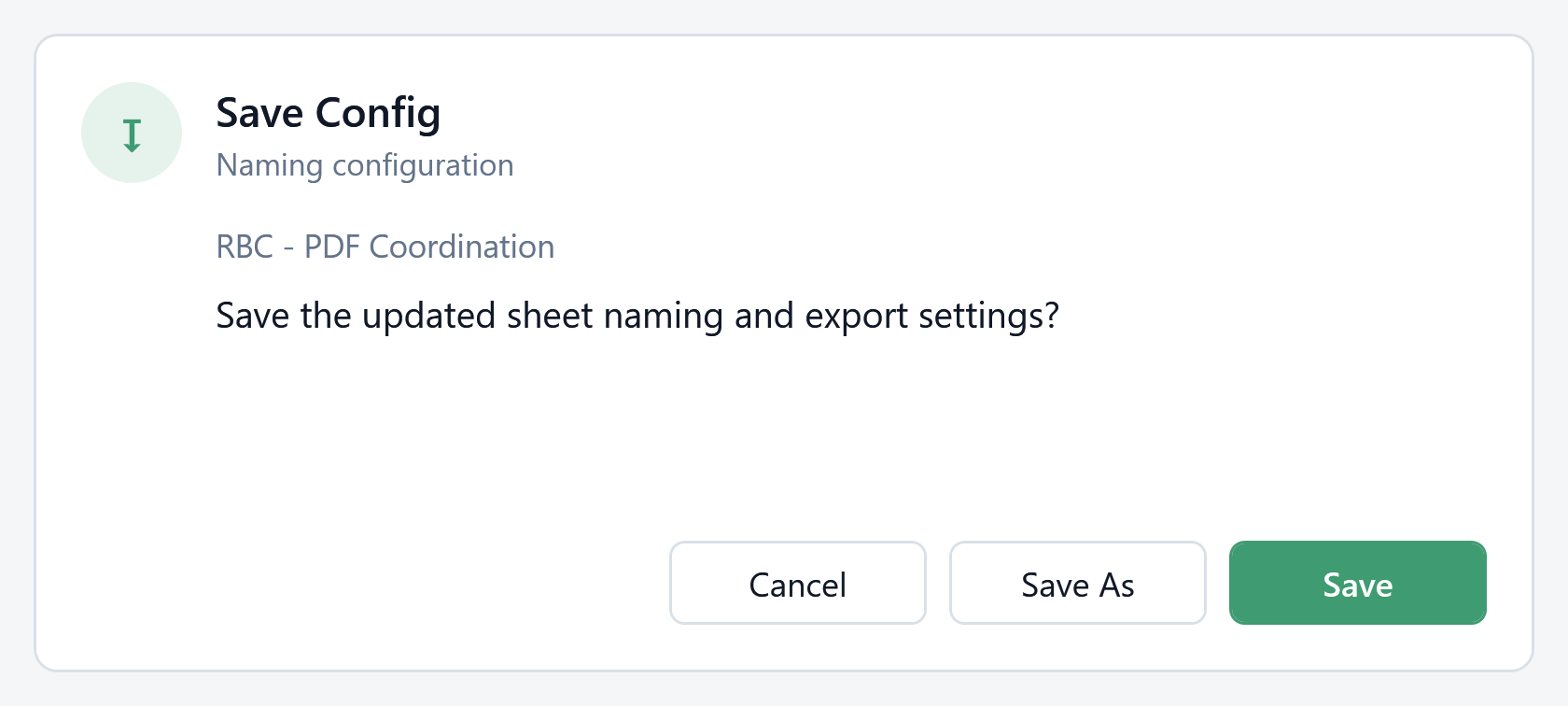
Check the selected items and queue before starting. Configuration, naming and revision windows are shown below; available formats also depend on your Revit environment.
For a drawing issue, select sheets, build a name containing the number and revision, then configure PDF and DWG outputs. Saving the configuration avoids entering these choices again for each issue.
In the model5 sheets: A-100, A-101, A-200, A-300 and A-501, revision P02.
In the extensionSelect the PDF configuration and combine number, sheet name and revision.
Check the resultExample file: RBC_A-100_Ground Floor Plan_P02.pdf.
Illustrative example: the windows are populated with a fictional English-language Revit project, “Riverside Business Centre”.