Targeted selection
Allowed categories, selection in the active view and parameter filters before generation.

Marking automatically fills a parameter sequentially across selected elements. It combines filtering, geometric ordering and mark composition to produce a consistent, repeatable sequence.
Allowed categories, selection in the active view and parameter filters before generation.
Sort elements by their position in the view to produce a logical sequence.
Numeric or alphabetical starting values, zero padding, prefixes and suffixes, and composition from existing parameters.
Group elements by parameter value and preview the sequence before writing.
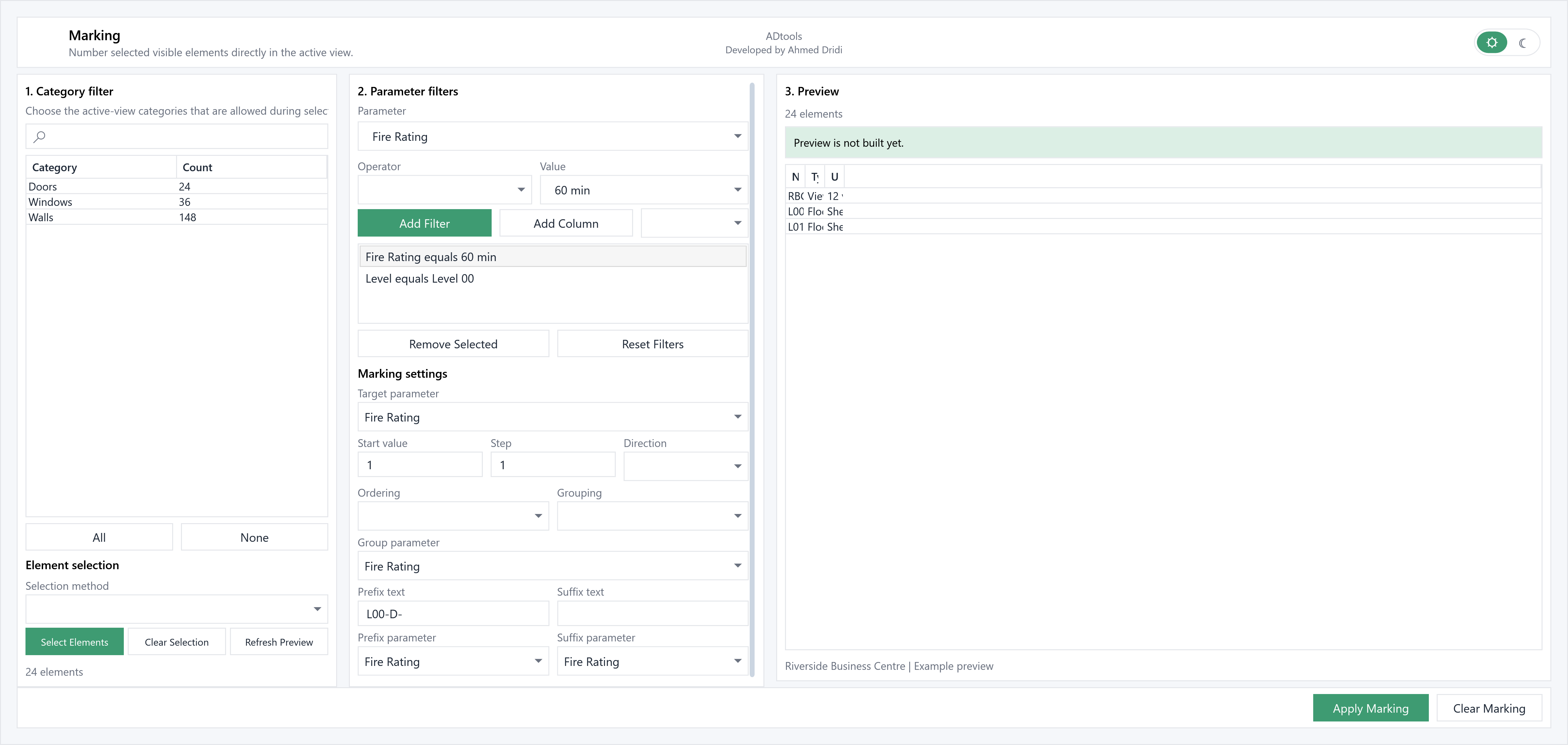
Limit allowed categories in the active view, select elements and refine the selection using parameters, operators and values. The preview table shows the retained elements.
Choose the target parameter, starting value, increment, direction and order. Grouping, prefix and suffix options help create project-specific numbering.
Refresh the preview to compare current and new values. Apply Marking writes the numbering; Clear Marking removes the targeted values.
To mark a series of elements, start at 001, define the traversal order and add a prefix. Review the New column before changing model marks.
In the modelDoors D-001 to D-004 on level L00.
In the extensionSelect Mark, prefix L00-D-, a starting value of 001 and an increment of 1.
Check the resultCompare current marks with L00-D-001 to L00-D-004 before applying.
Illustrative example: the windows are populated with a fictional English-language Revit project, “Riverside Business Centre”.