CAD inventory
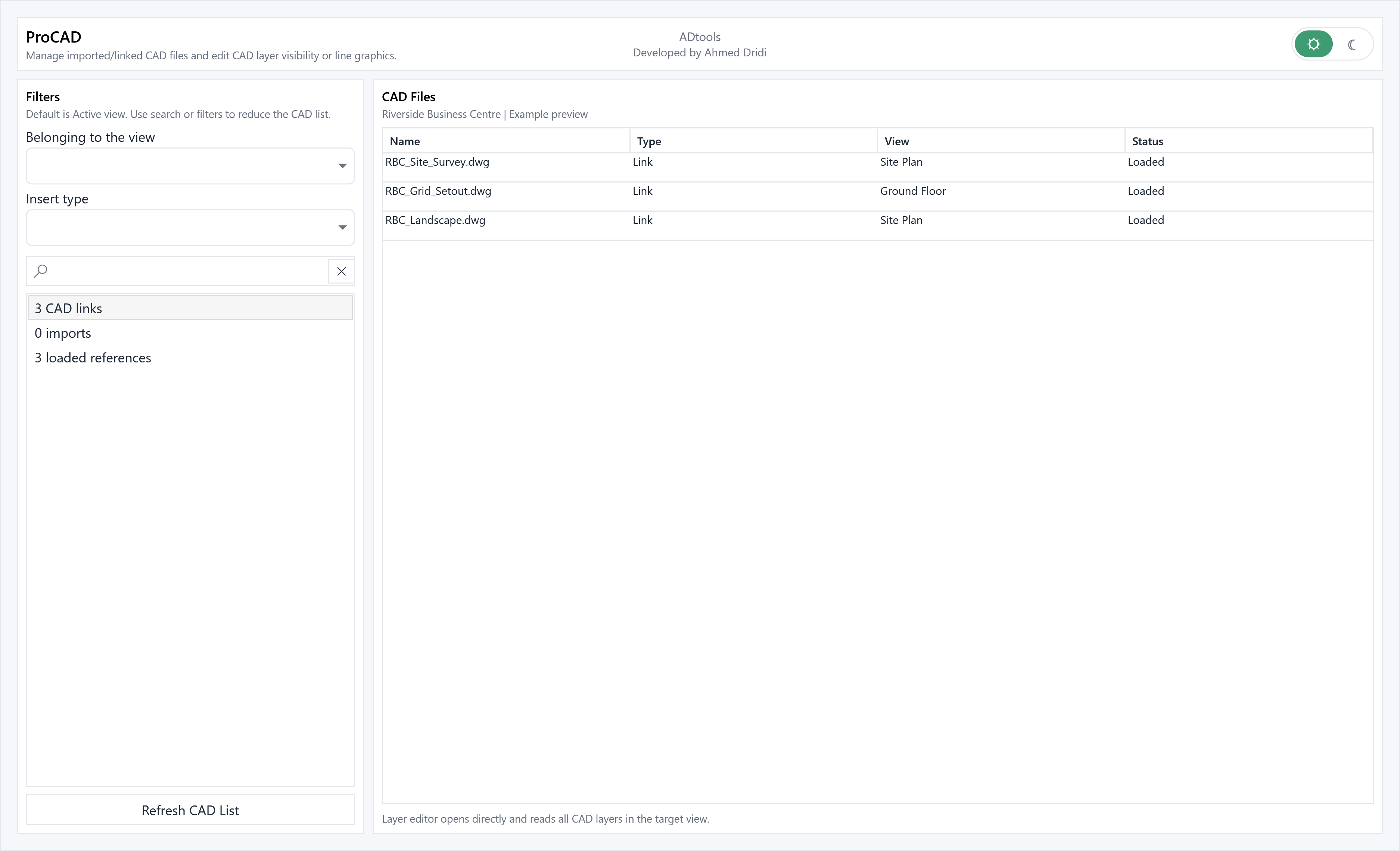
List CAD imports and links with IDs, names, associated views, file paths and status.

ProCAD brings together CAD files in the project so you do not have to find them view by view. Identify where they are used, access them and edit their layers from one interface.
List CAD imports and links with IDs, names, associated views, file paths and status.
Activate the view containing the CAD file, zoom to the instance and open its source folder.
Reload, Reload From and delete an instance or link as appropriate.
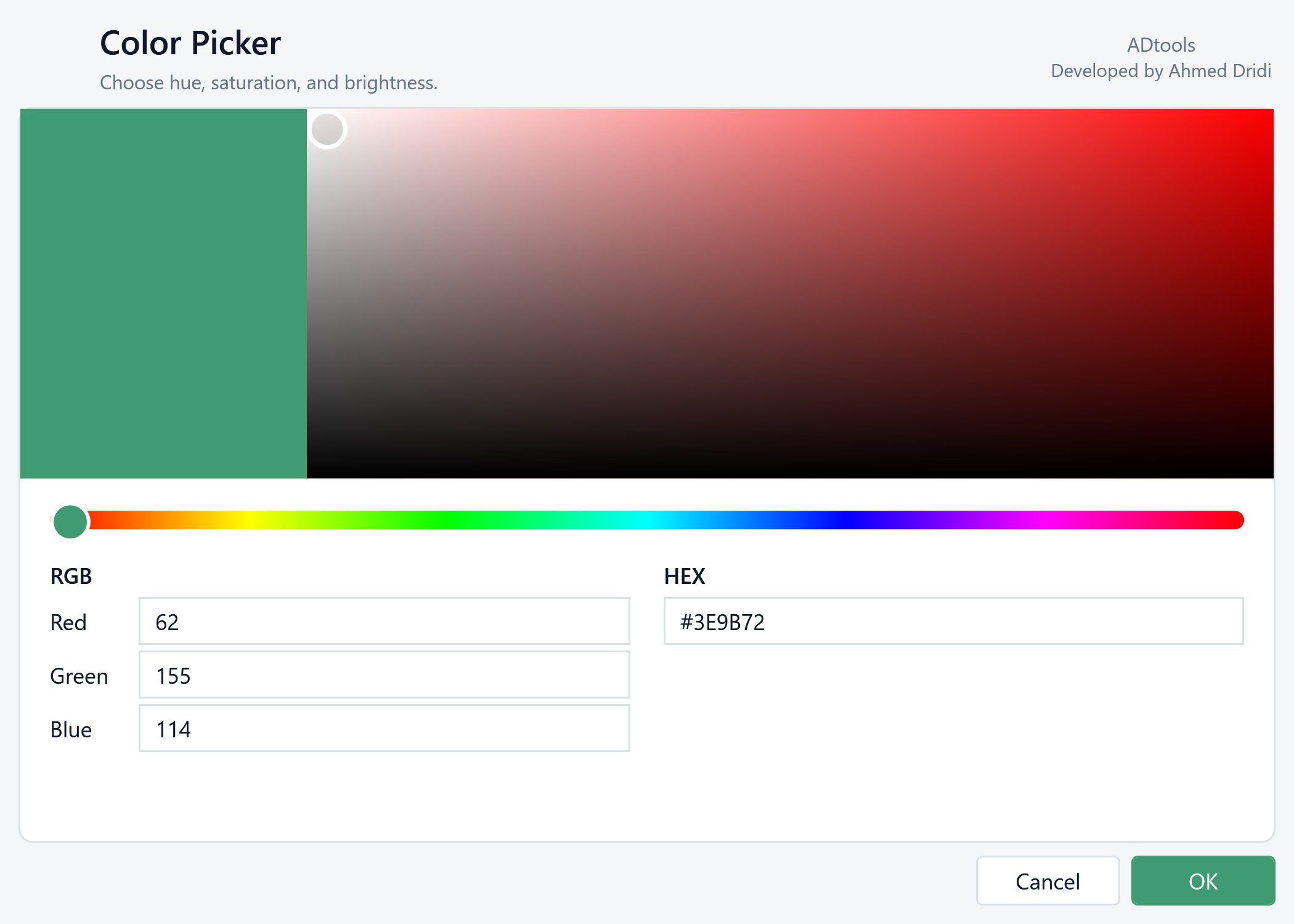
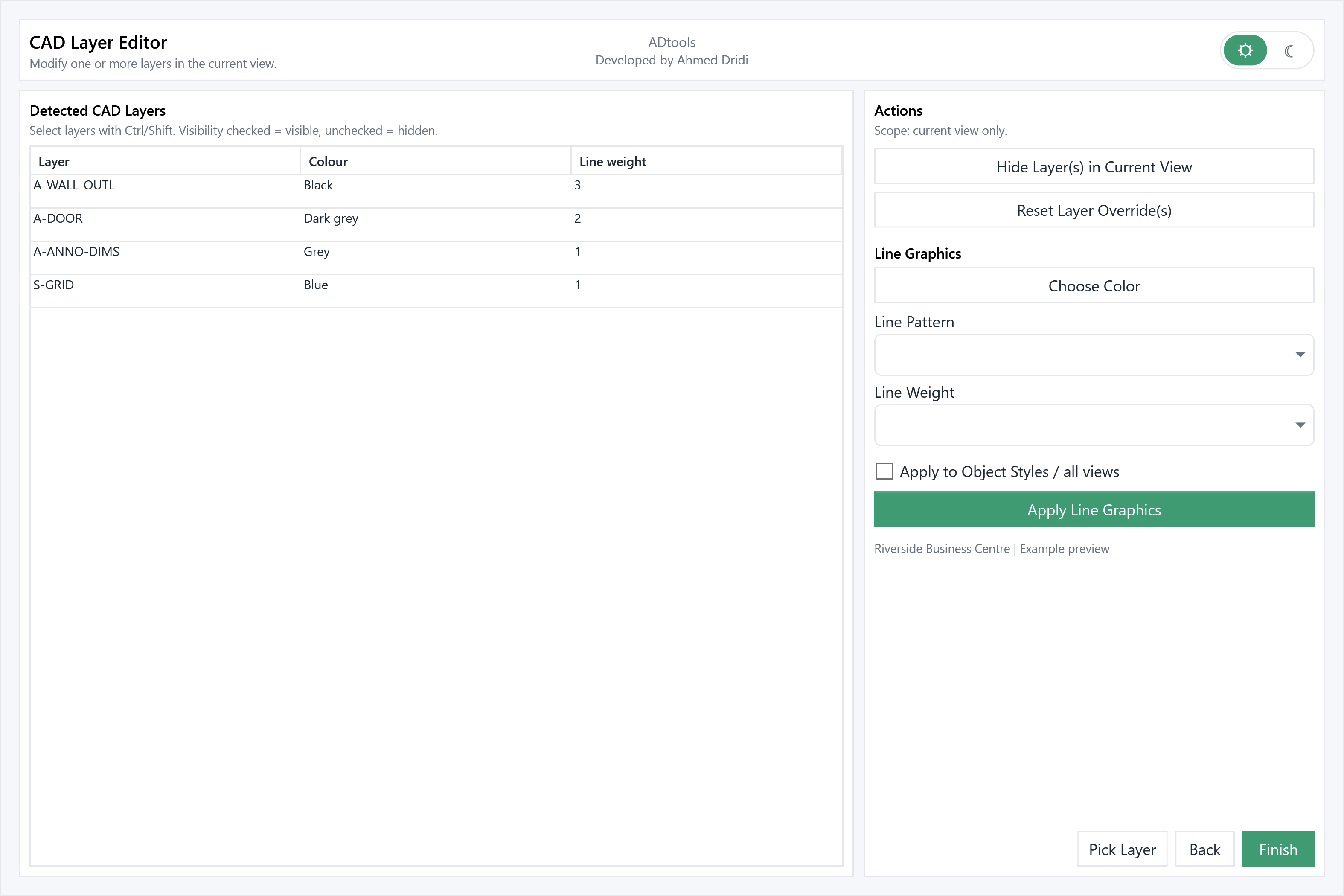
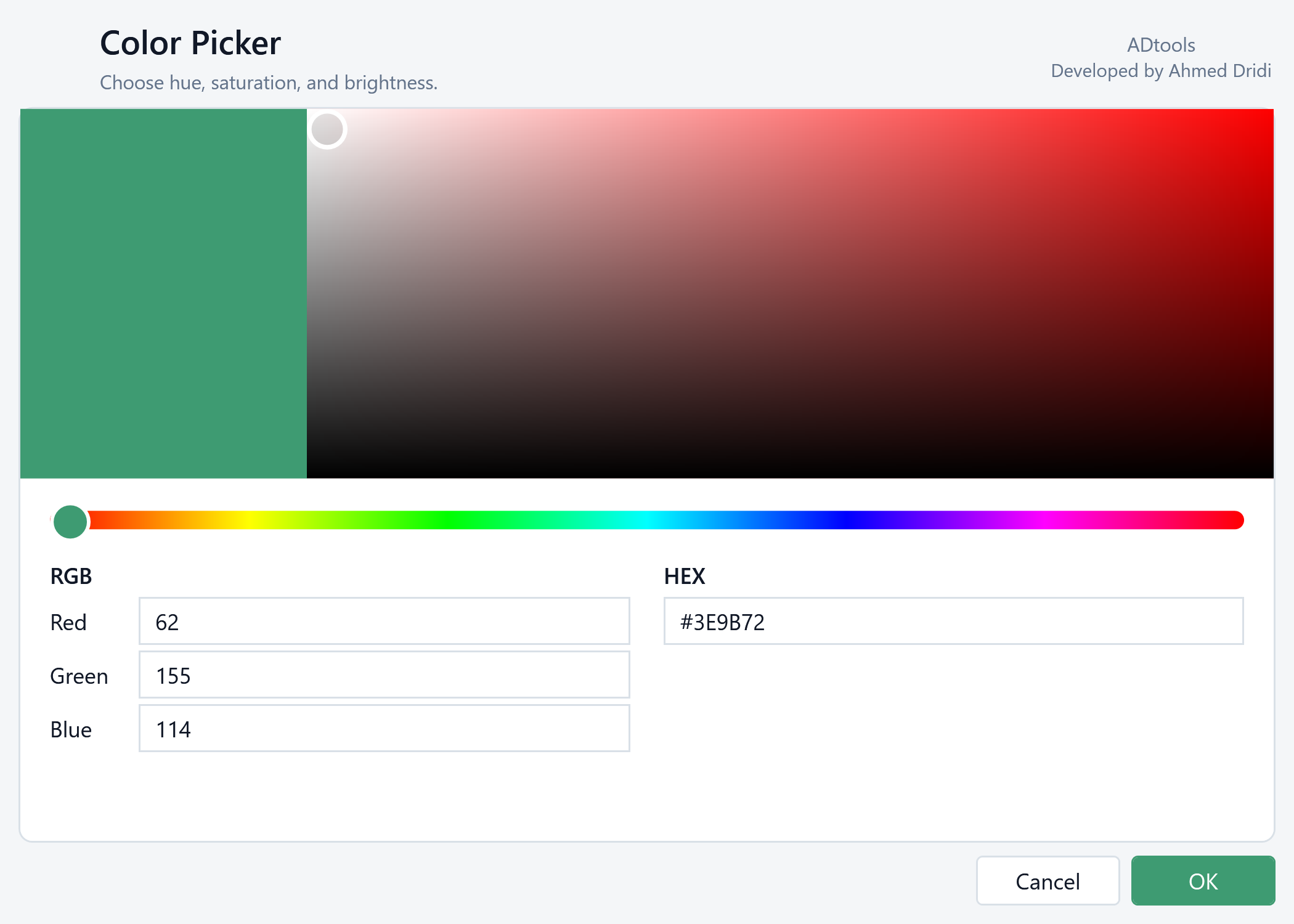
Edit layer visibility and graphic properties, including colours, weights and patterns for the active view.
Filter by view and insertion type, then search for CAD files. The table lists names, IDs, views, types and status to distinguish imports from links.
Row actions let you locate the file in the project, open its folder or reload it depending on its status. Check a reference without manually searching for its view.
Open the layer editor to control visibility, colours, weights and line patterns in the relevant view. Deletion operations have a separate confirmation.
If a DWG dominates a view, find its instance in ProCAD, open its layers, hide unnecessary ones and tone down the remaining lines.
In the modelRBC_Site_Survey.dwg, RBC_Grid_Setout.dwg and RBC_Landscape.dwg.
In the extensionFind the link in its view, then open its layers.
Check the resultSet A-WALL-OUTL to weight 3 and A-ANNO-DIMS to weight 1 for a clearer background drawing.
Illustrative example: the windows are populated with a fictional English-language Revit project, “Riverside Business Centre”.