
Control visibility while staying in the active view.
VIEWS

VG Viz
WHAT THE TOOL DOES
Keep Visibility/Graphics at hand in a dockable pane that follows the active view. Organise category shortcuts into named configurations, then control categories, imports, filters, links and worksets from one panel.
A CONCRETE USE CASE
A need. A clear workflow.
Access categories, imports, filters, links and worksets in one pane.
KEY FEATURES
Find your categories
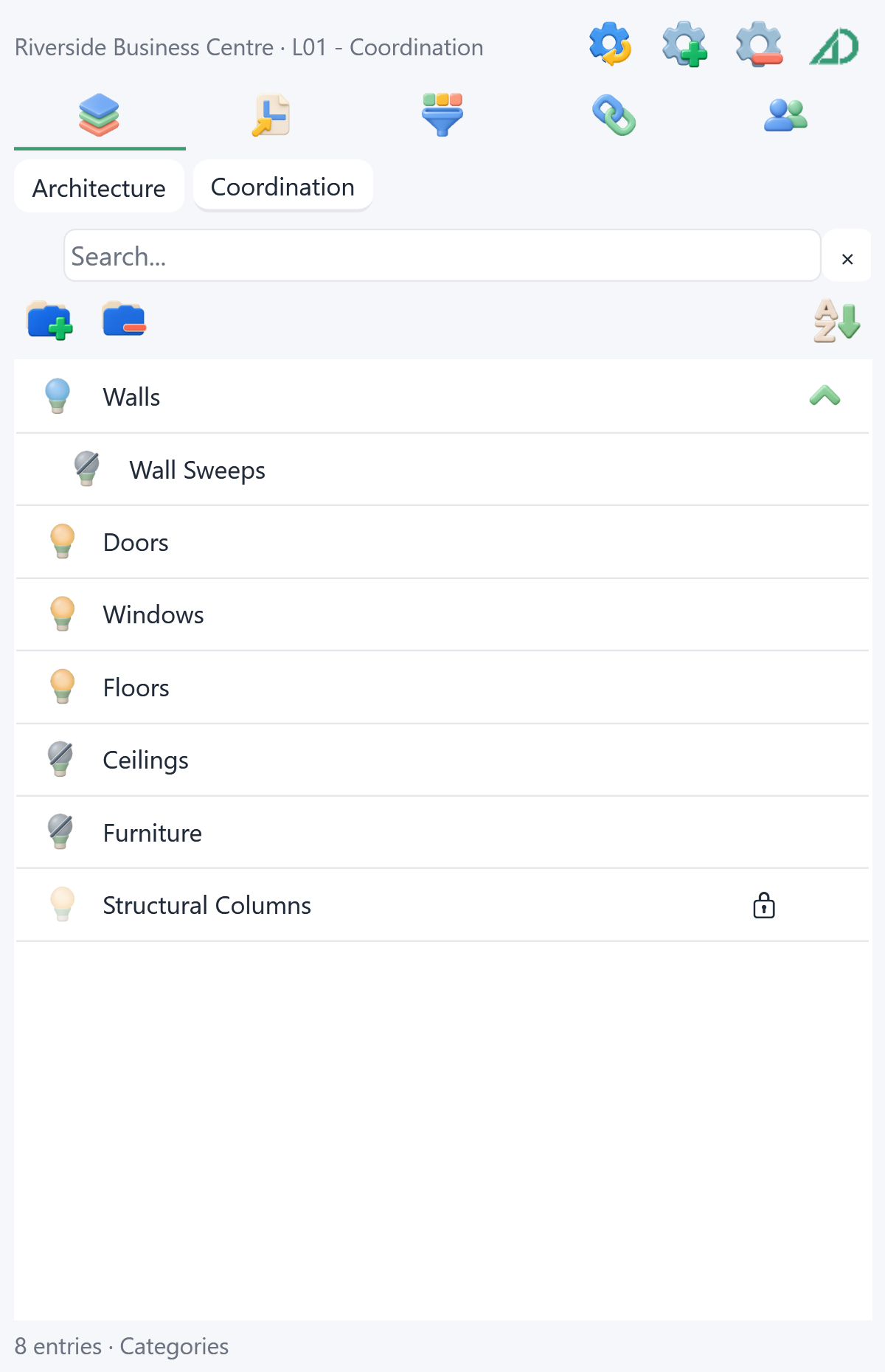
Sort categories in either direction and retain their local order. Saved category configurations belong to the Categories tab and are not presented as applicable settings on other tabs.
Five sections in one pane
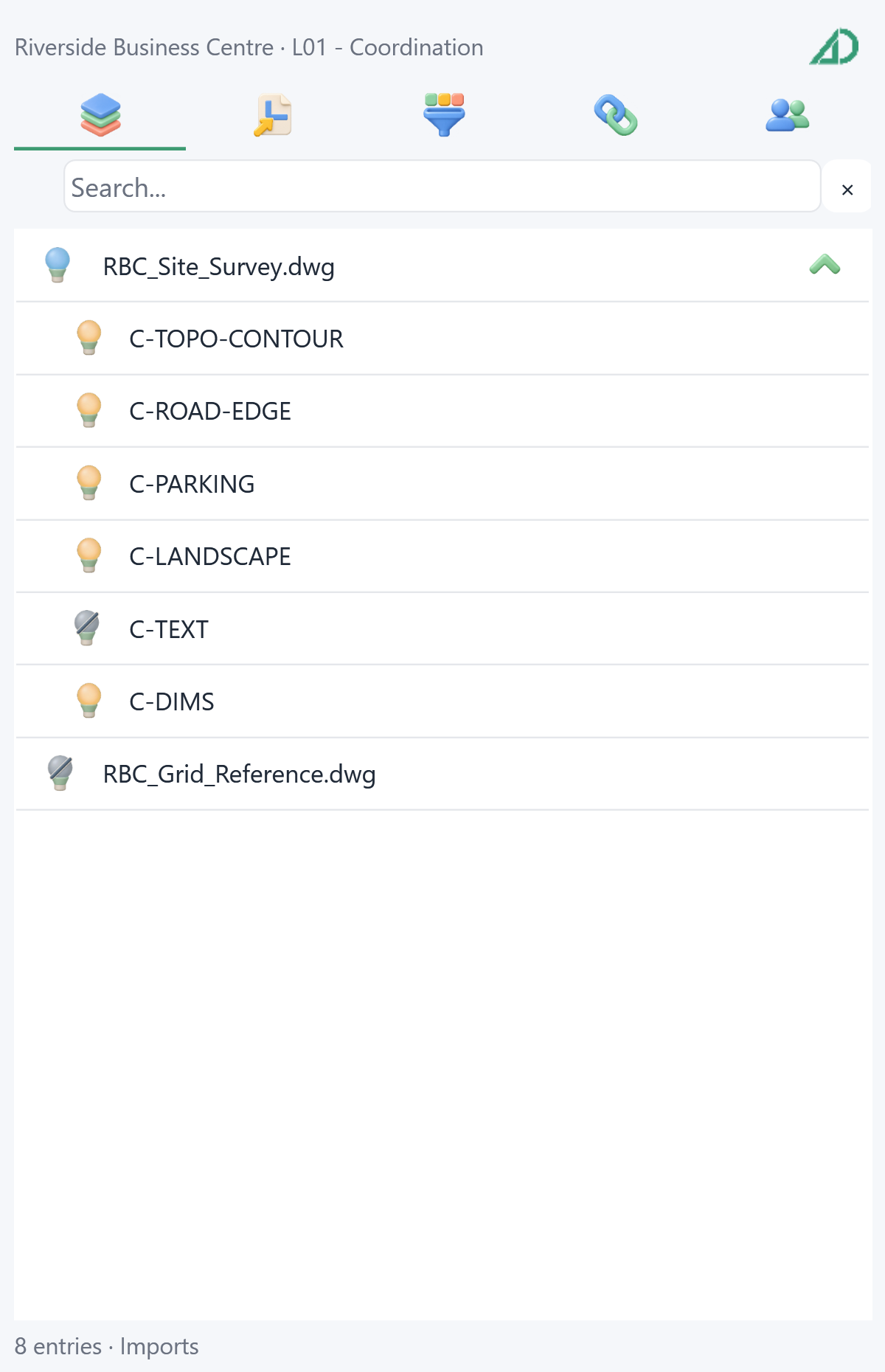
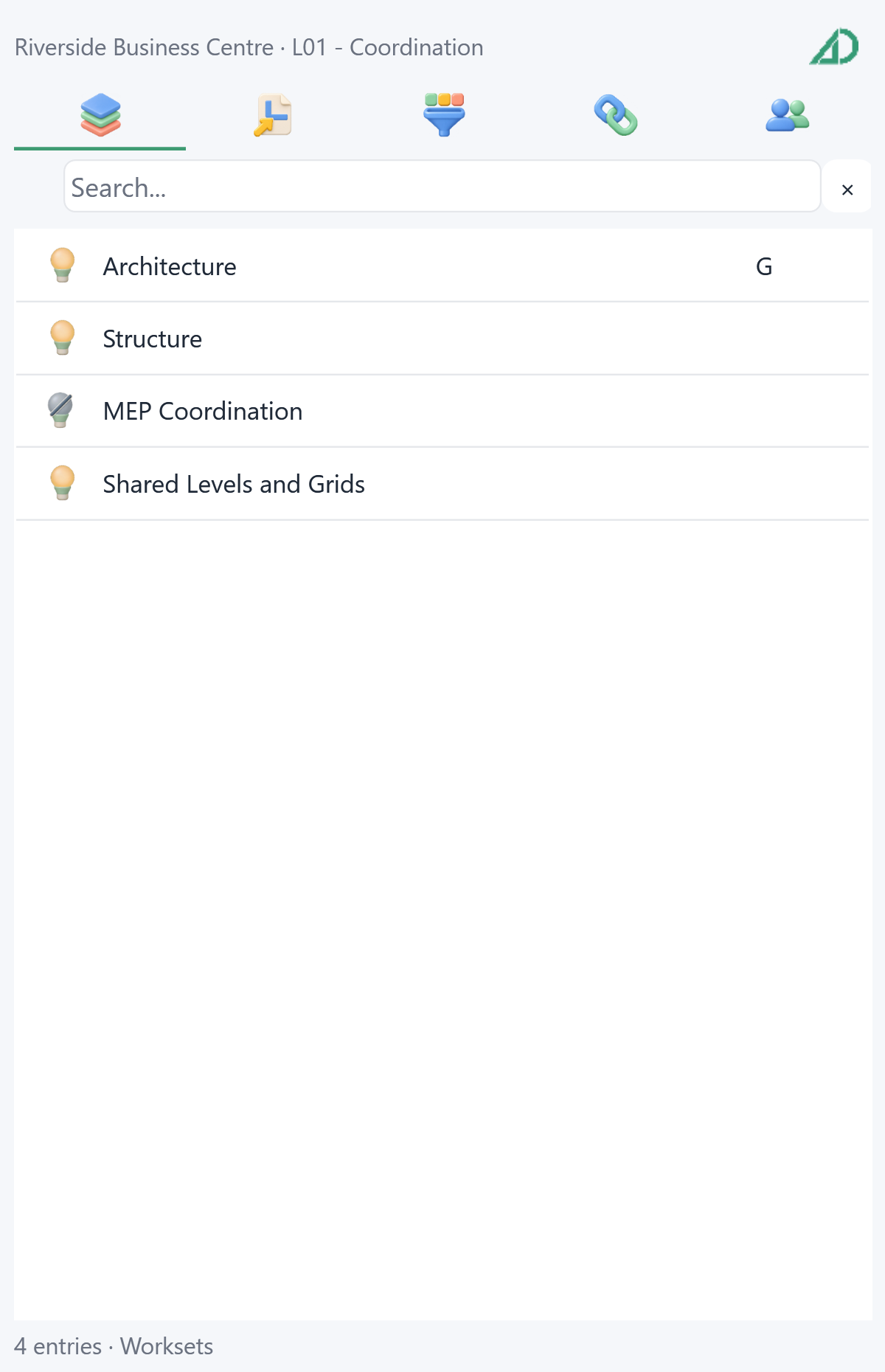
Categories, Imports, Filters, Links and Worksets bring model and annotation categories together. Expand the actual project subcategories and CAD layers.
Named category configurations
Add multiple categories using Ctrl/Shift selection and checkboxes. Save selected shortcuts, or all shortcuts when none are selected, under names such as Plans or Coordination. Loading a configuration changes shortcuts without changing view visibility.
Clear icon controls
The pane refreshes automatically with the active view. Light/dark theme and configuration actions use icons. Green means V/G enabled, grey disabled and blue a parent with hidden children; other view settings may still hide geometry.
Active-view control
Template-controlled settings remain locked. Filters keep their order and definitions. Links are not reloaded and closed worksets are not opened; Use Global Setting remains available. V/G changes support Revit Undo.
Update a saved configuration
Select a named configuration, edit its category shortcuts and use Update. It saves the complete current list to that configuration without changing Revit visibility settings.
Your category order
Sort category shortcuts with A–Z or drag one or several selected categories into place. The insertion line shows the destination; the order is retained in preferences and named configurations.
Visibility for multiple rows
Ctrl/Shift-select rows, then click a selected bulb to apply the same visibility state to the group. Template-controlled or locked rows are skipped; the selection is retained.
One grouped visibility operation
Changes for eligible selected rows are grouped into one undoable operation, followed by one refresh. Already-correct rows require no write; locked or unsupported rows remain reported.
IN PRACTICE
Visibility, within reach.
Prepare shortcuts
In L01 - Coordination, add Walls, Doors, Windows, Floors and Room Tags. Search retains checked categories.
Save a configuration
Select the shortcuts you need and save Coordination with the folder + icon. Its name appears above Search; click it to restore the list.
Adjust the view
Expand Walls and its subcategories, then use the bulbs. Switch to Imports, Filters, Links or Worksets to continue the review.
Riverside Office · fictional project
The sample coordination view shows Walls with Wall Sweeps disabled, selected survey layers and the Architecture workset inheriting the global setting.
The pane controls V/G visibility. It does not unload linked models or replace per-element hiding and other view controls.
The pane, in detail.
Actual source interface, populated with fictional project data.
ADTOOLS IN YOUR OFFICE
Request a demo See ADtools on your projects.
A video demo built around your own cases. Get in touch to set up a call.